October 2026: Updates Coming to Catalog & Libby
In October, two of York County Libraries’ vendors are updating their services.
- The Libby App will require a PIN starting Wednesday, October 14
- The online catalog is moving October 19. If you use the online “Library Account,” there’s some information to know!
Libby Users
The first update, coming mid-October, is that the Libby App will require a PIN number to maintain access.
Don’t worry!
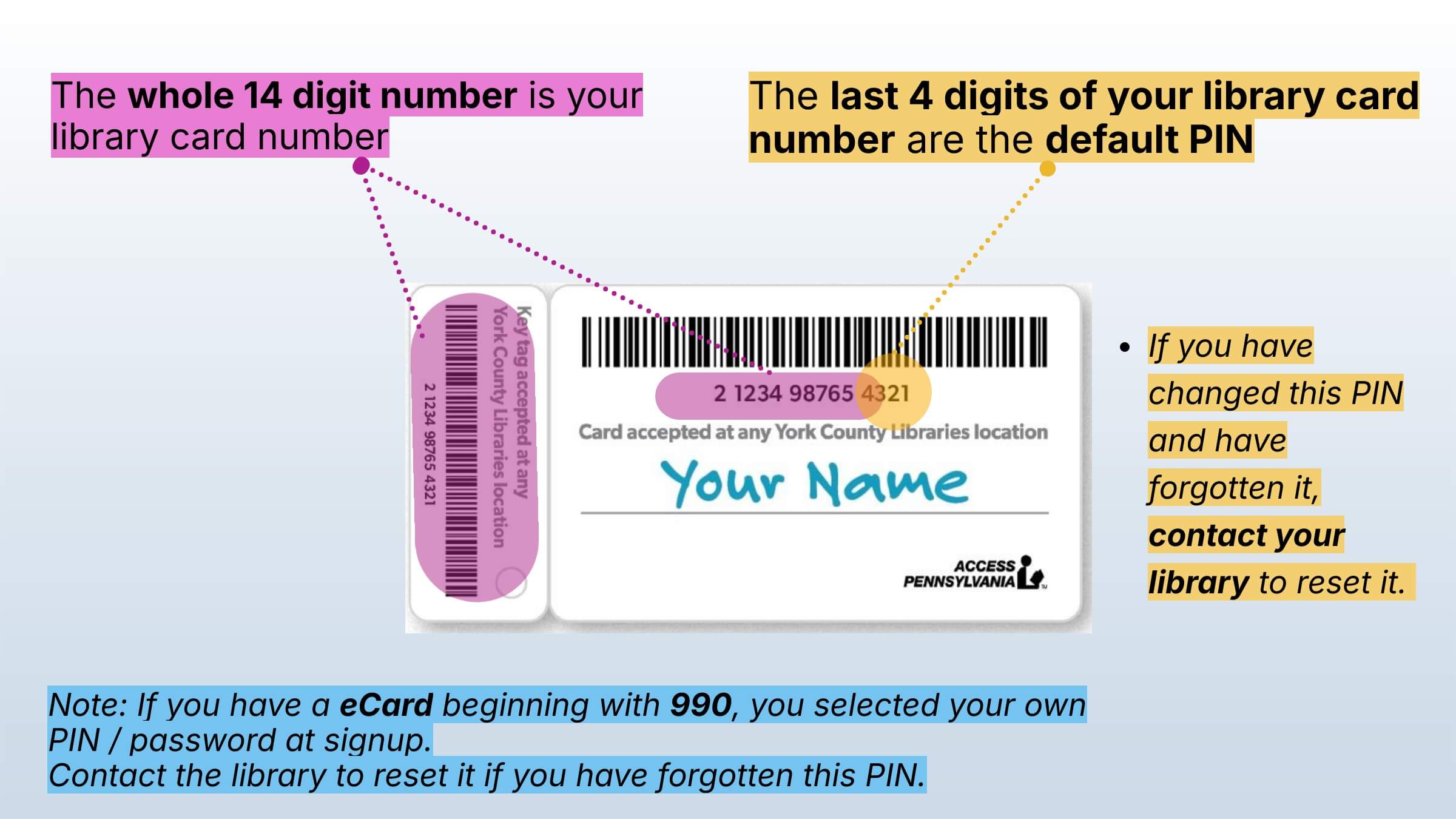
Most YCL Library cardholder accounts’ PINs are set to the last 4 digits of their library card.
- If you have any issues, contact your local library for a PIN reset.
- Important: If the PIN still does not work, do not delete the Libby app. Instead, remove the library card from the app and then add it again. You won’t lose any checkouts or holds.
Note: If your library card number starts with 990- , it is an eCard account. You set the PIN yourself when you registered. If you do not remember it, contact your local library!
Online Catalog Users
The second update: our online catalog is moving from “ChiliPAC” to “Aspen Discovery” on October 19.
There are TWO things to know with this update: How to make sure your Booklists transfer, and how to download your Check Out History.
Booklists
If you have Booklists saved in your account, make sure you log in to the new Aspen Catalog by December 1st.
Check Out History
If you have Check Out History turned on, and if you want to keep that information, you will need to download it by Sunday, October 18.
Check Out History is turned off by default. If you never turned it on, there’s nothing you need to do!
-
- Check Out History in ChiliPAC only lists physical items (print books, CD Audiobooks, kits, etc.)
- eBook checkout history in the Libby App is not affected.
-
3 Steps to Download your Check Out History from ChiliPAC
-
- Before October 19, log in to your account on ChiliPAC: https://york.discovery.sparkpa.org/MyAccount/Home
• The username for most people is their library card number.
• The PIN/Password for most people is the last 4 digits of their library card number
If it does not work, contact your library to have the PIN reset.
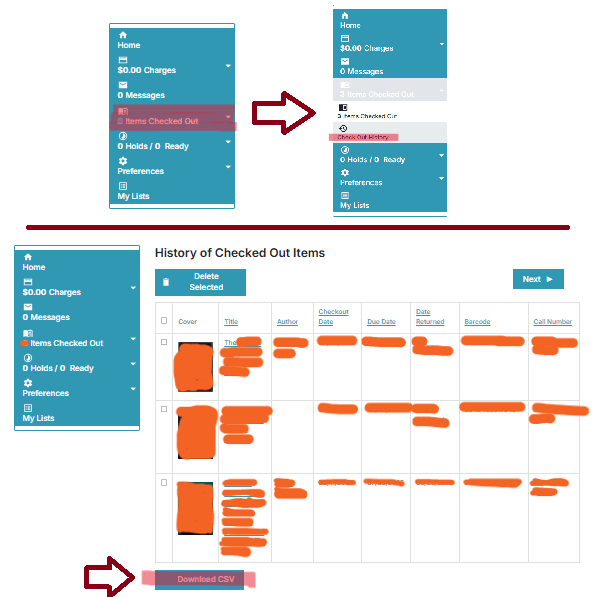
- Next, click the “Items Checked Out” option in the left menu to open it…
…and click “Check Out History” to show the history.
- Lastly, scroll to the bottom of the list to click the “Download CSV” button to download a list of your checkouts.

Features of the new Aspen Discovery Catalog:
Here are a few things we’re excited about with the new catalog!
- The new catalog will feature modern, predictive improved searching — this means fewer “no results” responses when you almost remember a title or author
- eBooks and eAudios on Libby will be searchable right alongside print items—no more “app hopping” to see if the library has an item
- “More like this” suggestions—when you place a hold on an item, Aspen will show you similar titles which are immediately available to read while you wait!
- Smart updates to Library Account, Holds, Reading History and Booklists
- A mobile app for the library catalog! Browse our full collection right from your phone.
You can start exploring the new catalog here: https://york.discovery.sparkpa.org/